Showing posts with label obiee 11g. Show all posts

Monday, August 8, 2016

OBIEE 12c: Amazon RedShift ODBC configuration on Linux

Starting from OBIEE 12c Oracle has started supporting the Amazon Cloud database Redshift as a data source. This is very good news as there are lot of clients waiting for using the cloud data sources with OBIEE. Below are the high level steps on configuring the ODBC driver on Linux to use in connection pool.

 Below are the high level steps


  • Installing Driver 
  • Configuration of ODBC parameters
  • Configure Connection Pool

Installing the Driver


Download and install Amazon Redshift ODBC driver to access Amazon Redshift data warehouse. Follow the instructions provided in Amazon Redshift documentation.

Note: By default, Amazon Redshift drivers are installed in the following directories
/opt/amazon/redshiftodbc/lib/32 (for a 32-bit driver)
/opt/amazon/redshiftodbc/lib/64 (for a 64-bit driver)


Configure connectivity to Amazon Redshift

The following files has to be edited to configure Oracle BI server connectivity to Amazon Redshift :
1. odbc.ini
2. odbcinst.ini
3. amazon.redshiftodbc.ini
4. Copy dbfeatures.ini

Note: The following edits to files assume that the Amazon Redshift drivers are installed under “/opt/amazon/redshiftodbc/lib/64”.


1. odbc.ini


Add the following to odbc.ini file

[ODBC Data Sources]
.
.
.
RedShift=installed
[RedShift]
Description=Amazon Redshift ODBC
Driver=/opt/amazon/redshiftodbc/lib/64/libamazonredshiftodbc64.so(default location, once you upgrade or reinstall the driver, file name may change)
ServerName=
Port=
Database=
locale=en-US
QueryTimeout=2000
ProxyHost=
ProxyPort=

2. odbcinst.ini

Add the following to odbcinst.ini file

[ODBC Drivers]
.
.
.
RedShift=installed
[RedShift]
Description=Amazon Redshift ODBC Driver (64-bit)
Driver=/opt/amazon/redshiftodbc/lib/64/libamazonredshiftodbc64.so

3. amazon.redshiftodbc.ini

Edit “/opt/amazon/redshiftodbc/lib/64/amazon.redshiftodbc.ini” and update the following.

[Driver]

.
.
DriverManagerEncoding=UTF-16


4. dbfeatures.ini

Copy the attached dbfeatures.ini file to BI server config directory, /config/fmwconfig/biconfig/OBIS


Setting Up Database Objects and Connection Pools


Install Amazon Redshift ODBC driver for windows. Create a system DSN.


Set the database type to “ODBC Basic” or “ODBC Advanced” in connection pool properties


Set connection pool call interface to “ODBC 3.5”


Monday, August 10, 2015

OBIEE 11g : Basics of Physical Layer

Physical Layer is the first one from right and it also come first even when we are designing the RPD. It holds the information about the tables, columns, datatypes, database properties, connection pools etc

This is the exact replica of underlying Data source as we import the metadata from the database as shown below


This picture contains
  • One database “Oracle Data Warehouse ” 
  • Three connection pools 
  • One Catalog
  • One Database Schema “dbo”
  • And 3 tables & four Aliases

Database

When we import some table or any metadata into the repository a Database icon will be created automatically which by default stores some of the important information associated with underlying data source. The below pictures gives you some idea about the same


Connection Pool

A connection pool is an object under a database, it stores the parameters or has the location where the parameters are available, using which we can connect to the database. As discussed earlier we require 5 parameters to connect to a Oracle Database. The picture will give you the insights of the same


Catalog

Catalog is just a folder in physical layer which doesn’t have any specific significance

Schema Name

Schema Name is the name of database object under which the table is stored. Generally these names will be same as the user names if manually created and will have different names when created using an application or creation utility.

Tables

Tables are the physical objects of database where the data is stored and are exact resemblance to the database object.

Alias

Alias is a duplicate of a table created when there is a need for the same physical table more than once, below are general cases where aliases are created
  • Dimensions and facts are in same physical table
  • Same physical table needs to be joined to another table more than once using different join conditions
  • Improve performance by avoiding circular joins

Tuesday, February 17, 2015

OBIEE 11g : Creating Node Manager as Windows Service

As we all know OBIEE runs on Weblogic server which was introduced by Oracle along with OBIEE 11g Version, so its pretty obvious that before we start OBIEE components we have to make sure Weblogic is running or the BI components wont start.

We have a sequence in which the components have to be started which are taken care in windows servers with a single click , Thanks to Start BI Services Icon. however we have a sequence lets look into it.

1) Weblogic Server as its the Host for all components
2) Node Manager(It is by default windows service in Enterprise Installation of OBIEE 11G)
3) Managed Servers(Comes with Enterprise Installation of OBIEE 11G) 
4) BI System Components ( BI Server, Presentation Services, Java Host, Cluster Controller, Scheduler etc..)

Lets see how can we deploy the Node Manager as Windows Service.

Step 1: 

Find and edit the nodemanager.properties file in the below location. 

[ORACLE_HOME]\wlserver_10.3\common\nodemanager


Find the below parameters CrashRecoveryEnabled and StartScriptEnabled change them to true as shown.


Step 2:

Now go to the below location [ORACLE_HOME]\wlserver_10.3\server\bin and run the file installNodeMgrSvc.cmd  which should create a windows service with name as below


                Oracle WebLogic NodeManager (PATH_TO_DOMAIN)

the same can be seen in the image.


Monday, February 16, 2015

OBIEE 11g : The Connection has Failed Error

If your'e working with OBIEE then you can't deny facing the issue "The connection has failed". The most common issue faced by almost everyone when we are trying to use import metadata option.


It clearly stated that it is not able to connect or what ever we have given is not helping the application to establish a connection with the database. So if your'e using a OCI interface then you must be doing the only thing wrong. Your'e not pointing the interface to proper directory with connection descriptions i.e. tnsnames.ORA file.

Resolution: We must point the interface to the proper directory by passing the path using a environment variable.


Path to Environment Variables Menu:

My Computer --> Properties --> Advanced System Settings --> Environment Variables


click New to add a new variable as TNS_ADMIN variable. The value needs to be the path to your tnsnames.ora file, typically located at [ORACLE_HOME]\network\admin. The path will look something like the value shown below (it depends on where Oracle is installed on your system).


Hope this helps !!!


OBIEE 11g: Customizing Prompt ‘All Column Values’ to Custom Value

The requirement is to have a custom prompt value which will in turn hold all the prompt values. We mean to say All Column Values with new name. This looks simple but practically this is impossible to do. We have identified a way to achieve this in some scenarios i will explain one here.

We have a Prompt which holds the values of States in USA , now when we want to show all the values of USA (All States) we may have to select All Column Values or individually select all the values. Second is pretty bad idea as it makes no sense to select hundreds of column values. The first one is the apt but the client is looking for something different.

We need to show National instead of All Column Values as shown below.


Now lets see how this can be done.We have to build a new group as per our requirement as shown below. For this create a report which contains column that you are going to prompt and create group here with the name you need.


Provide the label as required , my case National and copy all the elements under it as shown below..


Now save the selection steps as shown below in some folder as this is where you will be finding it for use. Also select if it is going to be saved statically or dynamically, just in case if any future elements are added.


Now go to edit the prompt and include the group as shown below.


Click the Green Plus symbol to add the desired group from the saved location.


Now you can go ahead and use it as if it is a general column value.

OBIEE 11g : Trellis Chart

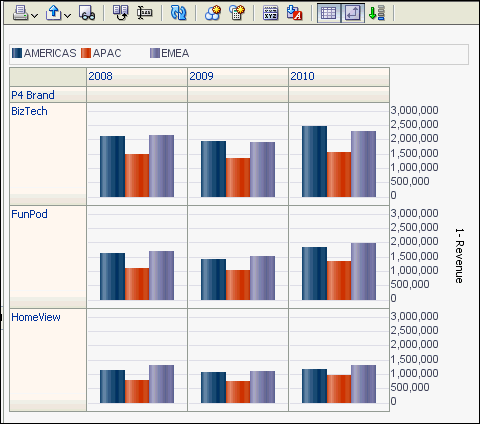
The name Trellis Charts will not give a good insight of what exactly this does in OBIEE. Simply speaking these are charts in grids. That is graphs in table cells or pivot cells that display matrices of measures with each cell in the matrix containing a micro chart,

Let us now build a simple Trellis Chart, which allow you to select any graph type for each chart cell, the sales is shown by product category. Perform steps as below.

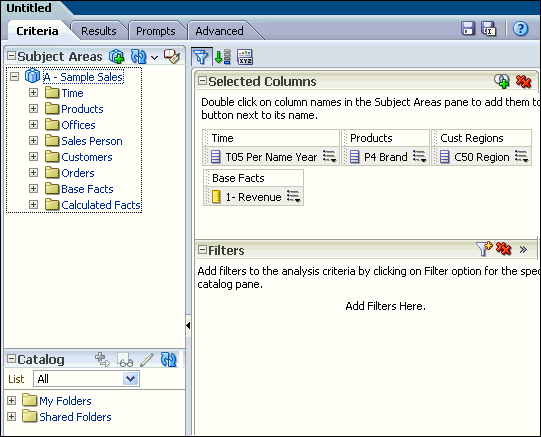
1.Create a new analysis, With 3 or 4 columns. I have taken the Sample Sales and added columns as shown below.


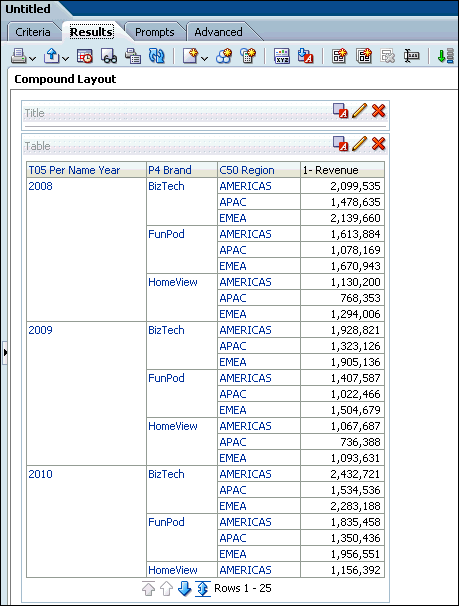
2.Go to Results tab by default we can see the table view as below.


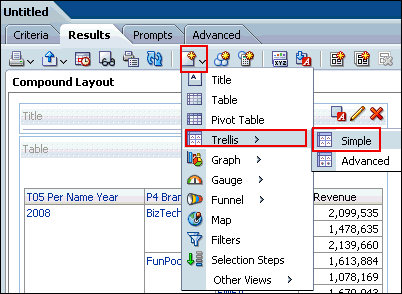
3. As always since we are looking for Trellis chart , add one from new view icon as show below. For now we will choose simple Trellis view.


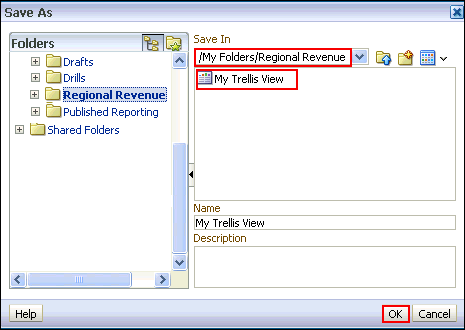
4. Save the analysis with some name, My case I am saving as My Trellis View 


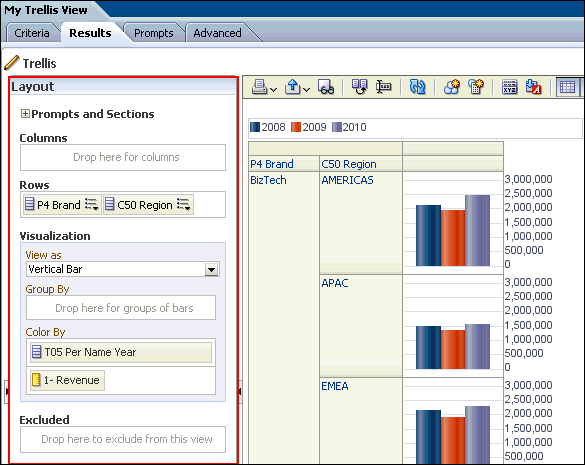
5. Click the Edit View icon of the Trellis view to go to the view adjustments. You can see the alignment difference from other views.


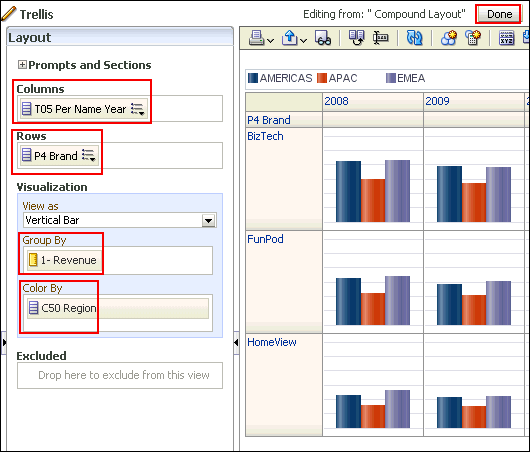
6.Arrange the measures and dimensions as required, for example refer below.


7. Now your Trellis view looks something like below. You can do several customizations as per your need.


This post is to get you familiarized with the Trellis views. You can play around to understand the complex views.

Saturday, February 14, 2015

OBIEE 11g : Shared logon in Connection Pool

Recently we have faced an issue where we got the error invalid username/password this has happened randomly on one morning and every user has same error.

We have tried the username/password directly on database and it is working fine but its not working with OBIEE. The connection pool is also having the same username/password.We didn't know what went wrong.

When we started debugging we came to know that the DSN used was having a username/password which was delimited as part of DB maintenance activity as it is no longer used. But how come it is responsible for our issue, because we are using the latest username/password.

Resolution for this was to enable Shared Logon


Select this option if you want all users whose queries use the connection pool to access the underlying database using the same user name and password.

If this option is selected, then all connections to the database that use the connection pool use the user name and password specified in the connection pool, even if the user has specified a database user name and password in the DSN (or in user configuration).

If this option is not selected, connections through the connection pool use the database user ID and password specified in the DSN or in the user profile.

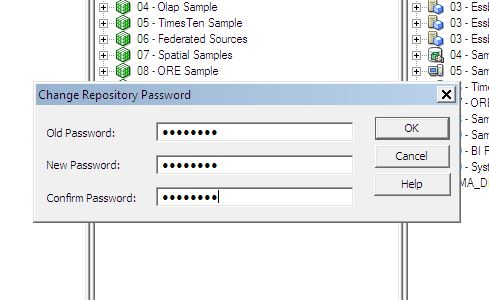
OBIEE 11g : Change repository password from RPD

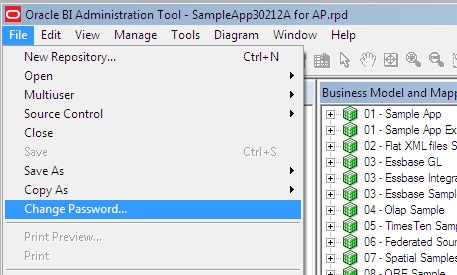
Administration tool has an option to change the password once you feel it has been compromised with too many people, we can do this by opening the RPD in Administration tool using the current password.

 Now, once it is open go to File --> Change Password as shown below.


Just enter the Current Password , and then the new password and confirm the same by re entering it.
Click OK and your'e done.


Be careful while uploading this to the server. you should use the new password in the EM.

Monday, February 2, 2015

OBIEE 11g installation and pre installation settings

Now I am back to the start where I have started my career as a BI Consultant. The first thing that I learnt and struggled with Google to understand each and every step which later was done hundreds of times. Its the installation of OBIEE 11g.

Lets get into the topic, we can break the whole installation part into four pieces.

Now lets see why we need all these and how they play their role in installation of OBIEE 11g. The major parts of OBIEE 11g installation are RCU and OBIEE itself.

Repository Creation Utility - This is a utility given by oracle to create necessary schemas for the OBIEE installation to use.

So in order to create the necessary schemas we need a Database, this is where it acts as a pre requisite before we go for RCU.

And the other important step is Configuring Microsoft Loop back Adapter which is standalone and can be done much before starting the database installation but it has to be done before OBIEE installation , the reason for this is because most of the VM we use are with DHCP(Dynamic Host Configuration Protocol) Environment. Importantly you can skip this step if you're using a server with static IP address.


Tuesday, January 6, 2015

OBIEE Cache is enabled, but why is the query not cached?

Repeatedly customers pose the question – OBIEE cache is enabled, but why is the query not cached? The reason why the queries are not cached can be of many reasons. Some of the reasons are:

Non-cacheable SQL function: If a request contains certain SQL functions, OBIEE will not cache the query. The functions are CURRENT_TIMESTAMP, CURRENT_DATE, CURRENT_TIME, RAND, POPULATE. OBIEE will also not cache queries that contain parameter markers.

Non-cacheable Table: Physical tables in the OBIEE repository can be marked ‘non-cacheable’. If a query makes a reference to a table that has been marked as non-cacheable, then the results are not cached even if all other tables are marked as cacheable.


Query got a cache hit: In general, if the query gets a cache hit on a previously cached query, then the results of the current query are not added to the cache. Note: The only exception is the query hits that are aggregate “roll-up” hits, will be added to the cache if the nqsconfig.ini parameter POPULATE_AGGREGATE_ROLLUP_HITS has been set to Yes.

Caching is not configured: Caching is not enabled in NQSConfig.ini file.


Result set too big: The query result set may have too many rows, or may consume too many bytes. The row-count limitation is controlled by the MAX_ROWS_PER_CACHE_ENTRY nqsconfig.ini parameter. The default is 100,000 rows. The query result set max-bytes is controlled by the MAX_CACHE_ENTRY_SIZE nqsconfig.ini parameter. The default value is 1 MB. Note: the 1MB default is fairly small. Data typically becomes “bigger” when it enters OBIEE. This is primarily due to Unicode expansion of strings (a 2x or 4x multiplier). In addition to Unicode expansion, rows also get wider due to : (1) column alignment (typically double-word alignment), (2) nullable column representation, and (3) pad bytes.


Bad cache configuration: This should be rare, but if the MAX_CACHE_ENTRY_SIZE parameter is bigger than the DATA_STORAGE_PATHS specified capacity, then nothing can possibly be added to the cache.

Query execution is cancelled: If the query is cancelled from the presentation server or if a timeout has occurred, cache is not created.

OBIEE Server is clustered: Only the queries that fall under “Cache Seeding” family are propagated throughout the cluster. Other queries are stored locally. If a query is generated using OBIEE Server node 1, the cache is created on OBIEE Server node 1 and is not propagated to OBIEE Server node 2

Wednesday, October 23, 2013

Starting and Stopping the BI services from command prompt in OBIEE 11g

OBIEE 11g has OPMN services which include BI server, Scheduler ,Presentation Services, Cluster and JavaHost. Lets see how we can manage them from command line using the oracle provided OS script file.


  • CTRL+R will open the run dialog box.
  • Type cmd and hit enter, it will open a command line with default path to user documents and settings.
  • Change the directory to where ever the OBIEE_HOME exists.
  • go to folder ORACLE_HOME/instances/instances1/bin
This folder contains the OS script file which can control the BI services.
  1. opmnctl  stopall - will stop all the BI services 
  2. opmnctl  startall - will start all the BI services
  3. opmnctl startproc ias-component=coreapplication_obips1 - to start the Presentation Server alone
  4. opmnctl stopproc ias-component=coreapplication_obips1 - to stop the Presentation Server alone
  5. opmnctl restartproc ias-component=coreapplication_obips1 - to restart the Presentation Server alone
we can control the other services alone by replacing the coreapplication_obips1 with respective names.