Showing posts with label obiee 12c. Show all posts

Thursday, December 1, 2016

OBIEE 12c - Display Images to Show the Trend

OBIEE 12c has not only changed in terms of  architecture,but also in the way we do reporting. Everything has become so simple and easy to understand (of course if you have know earlier versions well). The display of images next to data  to instantly understand the trend is one of the ways. Earlier version the same can be done but we have to do a bit of ground work for that, 12c gets it done a lot easier.

Let me consider a small report as shown in image below, where we display the Year, Office , Revenue and Target Revenue. Which is quite simple.

Now we have a lot more ways to highlight the data to show if the Revenue as met the Target.


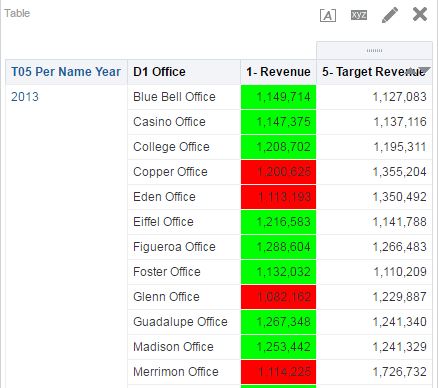
Write a conditional format where you check if Revenue is higher than Target Revenue then Display in Green and if not in Red as shown below.


This looks good where as not presentable, you cant show red and green in presentations, it will be far better if we can use some arrows with Green and directed upwards for green and Red with looking down.  This can be achieved using the Image option given in Column Format.

I will write a small conditional Format on the column Revenue to fullfill this. 


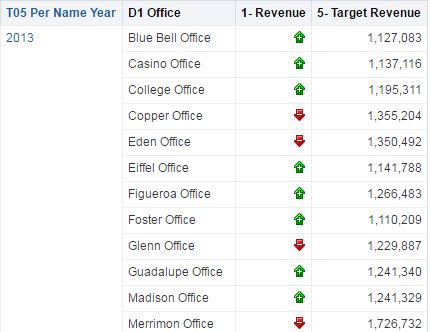
Similarly for downward trend select a Red arrow going down. The report will look like below.


There are three options on the position of image, Left, Right and Image Only.

Left  -  to display the image on the Left on Data Value
Right - to display the Image on the Right of Data Value , which is also the system default

Image Only - to display the image alone and suppress the Data Value from the Report, Like Below.


Hope this helped !


Monday, August 8, 2016

OBIEE 12c: Amazon RedShift ODBC configuration on Linux

Starting from OBIEE 12c Oracle has started supporting the Amazon Cloud database Redshift as a data source. This is very good news as there are lot of clients waiting for using the cloud data sources with OBIEE. Below are the high level steps on configuring the ODBC driver on Linux to use in connection pool.

 Below are the high level steps


  • Installing Driver 
  • Configuration of ODBC parameters
  • Configure Connection Pool

Installing the Driver


Download and install Amazon Redshift ODBC driver to access Amazon Redshift data warehouse. Follow the instructions provided in Amazon Redshift documentation.

Note: By default, Amazon Redshift drivers are installed in the following directories
/opt/amazon/redshiftodbc/lib/32 (for a 32-bit driver)
/opt/amazon/redshiftodbc/lib/64 (for a 64-bit driver)


Configure connectivity to Amazon Redshift

The following files has to be edited to configure Oracle BI server connectivity to Amazon Redshift :
1. odbc.ini
2. odbcinst.ini
3. amazon.redshiftodbc.ini
4. Copy dbfeatures.ini

Note: The following edits to files assume that the Amazon Redshift drivers are installed under “/opt/amazon/redshiftodbc/lib/64”.


1. odbc.ini


Add the following to odbc.ini file

[ODBC Data Sources]
.
.
.
RedShift=installed
[RedShift]
Description=Amazon Redshift ODBC
Driver=/opt/amazon/redshiftodbc/lib/64/libamazonredshiftodbc64.so(default location, once you upgrade or reinstall the driver, file name may change)
ServerName=
Port=
Database=
locale=en-US
QueryTimeout=2000
ProxyHost=
ProxyPort=

2. odbcinst.ini

Add the following to odbcinst.ini file

[ODBC Drivers]
.
.
.
RedShift=installed
[RedShift]
Description=Amazon Redshift ODBC Driver (64-bit)
Driver=/opt/amazon/redshiftodbc/lib/64/libamazonredshiftodbc64.so

3. amazon.redshiftodbc.ini

Edit “/opt/amazon/redshiftodbc/lib/64/amazon.redshiftodbc.ini” and update the following.

[Driver]

.
.
DriverManagerEncoding=UTF-16


4. dbfeatures.ini

Copy the attached dbfeatures.ini file to BI server config directory, /config/fmwconfig/biconfig/OBIS


Setting Up Database Objects and Connection Pools


Install Amazon Redshift ODBC driver for windows. Create a system DSN.


Set the database type to “ODBC Basic” or “ODBC Advanced” in connection pool properties


Set connection pool call interface to “ODBC 3.5”