
Thursday, August 1, 2013

Thursday, March 7, 2013

Monday, March 4, 2013
Generate SQL insert/update statements from Excel
Excel is a very helpful tool when you are trying to copy data between to non compatible environments.Once such situation is having data in a excel file and want to import it to a data base table.its very easy to generate insert/update commands in excel which can be directly executed in the console.
We have two options for import
This helps us a lot when data is in exact format of the table.how ever when we have data in pivots and complex formats this will not help.For such cases we have option 2.

We have two options for import
1) Direct import option in SQL Developer
select the table in the left panel of the SQL developer,right click ,import.This helps us a lot when data is in exact format of the table.how ever when we have data in pivots and complex formats this will not help.For such cases we have option 2.
2) Generate INSERT/UPDATE statements
I will give you a simple example, the logic can be applied to any complex statements.
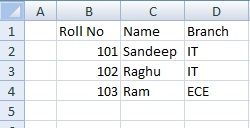
Lets consider below data ,which has to be inserted into a STUDENT TABLE (ROLL NO.NAME,BRANCH)
Now select a cell next to last column of the first row and write the below statement in it
="INSERT INTO STUDENT ("&B2 &",'"&C2 &"','"&D2 &"')"
Apply the same formula for all the rows by just dragging the cell.
You can see the result as below

This is simple and the logic applies for all complex queries.
Monday, November 5, 2012
The terminal server has exceeded the maximum number of allowed connections
An established Remote Desktop connection to the server will remain active until the user "Log Off". Unlike if a user simply closes the remote desktop window that username will remain logged on.
The software running on the server in order to facilitate the Remote Desktop connection ,will allow up to two administrative sessions simultaneously.
If a third attempt is made to login to the server, the error discussed here will be shown to the user, and they will be unable to complete the login process.
To get around this error and log into the server, you can log into a special session call the Console Session in order to Log Out the other connections.
To do this, simply type the following in a Start -> Run or Command Prompt.
mstsc /v:00.00.00.00 /admin
The software running on the server in order to facilitate the Remote Desktop connection ,will allow up to two administrative sessions simultaneously.
If a third attempt is made to login to the server, the error discussed here will be shown to the user, and they will be unable to complete the login process.
To get around this error and log into the server, you can log into a special session call the Console Session in order to Log Out the other connections.
To do this, simply type the following in a Start -> Run or Command Prompt.
mstsc /v:00.00.00.00 /admin
or
mstsc /v:00.00.00.00 /f -console
Replace 00.00.00.00 with your server's IP Address.
Alternatively you may also modify the Remote Desktop Shortcut by going to:
For Windows Vista/7: Click Start, type remote desktop. Right Click the shortcut, click properties.
In the target field paste the following command: %systemroot%\system32\mstsc.exe /admin
For Windows XP: Click Start, go to All Program > Accessories > Communications > Right click Remote Desktop Connection and click properties.
In the target field paste the following command: %systemroot%\system32\mstsc.exe /admin
Click OK to save the change.
Now type in the IP of your server and you should be able to login via the Console.
Once logged into the server, right click on your task bar and select 'Task Manager'from the list. When the 'Task Manager' comes up, select the 'Users' tab. In this window, you will see all of the users currently connected to the server. Select a disconnected user, and then click the 'Log off' button at the bottom to clear it.
Once this has been completed, log the session you are using off and you should be able to connect as normal.
Please use this session only to properly terminate the other two active sessions
mstsc /v:00.00.00.00 /f -console
Replace 00.00.00.00 with your server's IP Address.
Alternatively you may also modify the Remote Desktop Shortcut by going to:
For Windows Vista/7: Click Start, type remote desktop. Right Click the shortcut, click properties.
In the target field paste the following command: %systemroot%\system32\mstsc.exe /admin
For Windows XP: Click Start, go to All Program > Accessories > Communications > Right click Remote Desktop Connection and click properties.
In the target field paste the following command: %systemroot%\system32\mstsc.exe /admin
Click OK to save the change.
Now type in the IP of your server and you should be able to login via the Console.
Once logged into the server, right click on your task bar and select 'Task Manager'from the list. When the 'Task Manager' comes up, select the 'Users' tab. In this window, you will see all of the users currently connected to the server. Select a disconnected user, and then click the 'Log off' button at the bottom to clear it.
Once this has been completed, log the session you are using off and you should be able to connect as normal.
Please use this session only to properly terminate the other two active sessions
Tuesday, October 30, 2012
OBIEE 11g Tutorial from Oracle
I've just come across a new tutorial from the Oracle By Example
Click on links to download the PDF files.
Click on links to download the PDF files.
Thursday, August 30, 2012
Configure session timeout in obiee 11g
The connection between the OracleBI Presentation Server and OracleBI Services when idle(no requests running) will expire by default in 210 minutes,this can be manually configured using the following steps:
1. Find the file instanceconfig.xml in following location
OracleInstance\Config\OracleBIPresentationServices\Coreappication\instanceconfig.xml
2. Add the following line in the security block add "ClientSessionExpireMinutes" block with no of minutes you want.
<clientsessionexpireminutes> 1440 </clientsessionexpireminutes>
3. Restart services OracleBI Presentation Services.
1. Find the file instanceconfig.xml in following location
OracleInstance\Config\OracleBIPresentationServices\Coreappication\instanceconfig.xml
2. Add the following line in the security block add "ClientSessionExpireMinutes" block with no of minutes you want.
<clientsessionexpireminutes> 1440 </clientsessionexpireminutes>
3. Restart services OracleBI Presentation Services.
Thursday, August 23, 2012
Display OutputLogicalSQL in Presentation Services for every Analysis
This is on of the most helpful options that helps a developer a lot.
We need to modify the instanceconfig.xml file to enable this feature.
Follow the below simple steps to enable it.
1.Find the instanceconfig.xml file take backup for safety.open the file.
2.Add the below XML code to the file and save it.
<TestAutomation>
We need to modify the instanceconfig.xml file to enable this feature.
Follow the below simple steps to enable it.
1.Find the instanceconfig.xml file take backup for safety.open the file.
2.Add the below XML code to the file and save it.
<TestAutomation>
<OutputLogicalSQL>true </OutputLogicalSQL>
</TestAutomation>
That's it,You are Done.
Subscribe to:
Posts (Atom)