Friday, August 2, 2013

Export or Import Oracle Database

To Import


  • For full database import open Command Prompt
> imp USERNAME/PASSWORD@SERVICENAME file='path' FULL='Y'

Example: imp scott/tiger@orcl file='D:\sales.dmp' full='Y'


  • For importing a specific schema open command prompt 
> impdp USERNAME/PASSWORD@SERVICENAME schemas=SCHEMA_NAME directory=DIRECTORY_NAME dumpfile=FILE_NAME logfile=LOGFILE.log


Example: impdp cmro/cmro@orcl schemas=CMRO directory=temp_dir dumpfile=cmro.dmp logfile=cmroexpdp.log

To Export


  • For full database export open Command Prompt

> exp USERNAME/PASSWORD@SERVICENAME file='path' FULL='Y'

Example: exp scott/tiger@orcl file='D:\sales.dmp' full='Y'


  • For exporting a specific schema open command prompt 
> expdp USERNAME/PASSWORD@SERVICENAME schemas=SCHEMA_NAME directory=DIRECTORY_NAME dumpfile=FILE_NAME logfile=LOGFILE.log


Example: expdp cmro/cmro@orcl schemas=CMRO directory=temp_dir dumpfile=cmro.dmp logfile=cmroexpdp.log


To know how to create a database directory see this


Supplier Dump File free Download

Oracle Supplier2 Schema .dmp file free download

To Download  Click Here

Note: Don't install any apps.First click will open a new tab close it. On the first page it will ask verification code enter and download

Quota.xls file for practicing activity guide

To Download Click Here


Follow the post to know how to import them to a DB scheme.


Monday, March 4, 2013

Generate SQL insert/update statements from Excel

Excel is a very helpful tool when you are trying to copy data between to non compatible environments.Once such situation is having data in a excel file and want to import it to a data base table.its very easy to generate insert/update commands in excel which can be directly executed in the console.

We have two options for import

1) Direct import option in SQL Developer

select the table in the left panel of the SQL developer,right click ,import.

This helps us a lot when data is in exact format of the table.how ever when we have data in pivots and complex formats this will not help.For such cases we have option 2.

2) Generate INSERT/UPDATE statements 

I will give you a simple example, the logic can be applied to any complex statements.

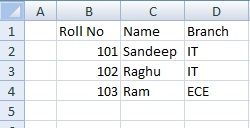
Lets consider below data ,which has to be inserted into a STUDENT TABLE (ROLL NO.NAME,BRANCH)


Now select a cell next to last column of the first row and write the below statement in it

="INSERT INTO STUDENT ("&B2 &",'"&C2 &"','"&D2 &"')"

Apply the same formula for all the rows by just dragging the cell.

You can see the result as below


This is simple and the logic applies for all complex queries.

Monday, November 5, 2012

The terminal server has exceeded the maximum number of allowed connections

An established Remote Desktop connection to the server will remain active until the user "Log Off". Unlike if a user simply closes the remote desktop window that username will remain logged on.

The software running on the server in order to facilitate the Remote Desktop connection ,will allow up to two  administrative sessions simultaneously.

If a third attempt is made to login to the server, the error discussed here will be shown to the user, and they will be unable to complete the login process.

To get around this error and log into the server, you can log into a special session call the Console Session in order to Log Out the other connections.

To do this, simply type the following in a Start -> Run or Command Prompt.

mstsc /v:00.00.00.00 /admin

or
mstsc /v:00.00.00.00 /f -console

Replace 00.00.00.00 with your server's IP Address.

Alternatively you may also modify the Remote Desktop Shortcut by going to:

For Windows Vista/7: Click Start, type remote desktop. Right Click the shortcut, click properties.

In the target field paste the following command: %systemroot%\system32\mstsc.exe /admin

For Windows XP: Click Start, go to All Program > Accessories > Communications > Right click Remote Desktop Connection and click properties.

In the target field paste the following command: %systemroot%\system32\mstsc.exe /admin

Click OK to save the change.

Now type in the IP of your server and you should be able to login via the Console.

Once logged into the server, right click on your task bar and select 'Task Manager'from the list. When the 'Task Manager' comes up, select the 'Users' tab. In this window, you will see all of the users currently connected to the server. Select a disconnected user, and then click the 'Log off' button at the bottom to clear it.

Once this has been completed, log the session you are using off and you should be able to connect as normal.

Please use this session only to properly terminate the other two active sessions