Sunday, May 3, 2020

Oracle Autonomous Database : Delete files from DATA_PUMP_DIR

To delete a single file from DATA_PUMP_DIR, we need to first know the name of the file.

The below statement can be used to list down all the files avialable in the DATA_PUMP_DIR

select * from DBMS_CLOUD.LIST_FILES('DATA_PUMP_DIR');

Now, copy the filename which you want to delete and use below command to delete it

BEGIN
UTL_FILE.FREMOVE('DATA_PUMP_DIR','FILE_NAME');
COMMIT;
END:
/

There can be a case where you want to delete all the files from the DATA_PUMP_DIR or any other directory defined in Oracle Database / ADB. Use the below to delete all files in one shot.

BEGIN
FOR r IN (SELECT object_name FROM DBMS_CLOUD.LIST_FILES('DATA_PUMP_DIR'))
LOOP
UTL_FILE.FREMOVE ('DATA_PUMP_DIR',r.object_name );
END LOOP;
COMMIT;
END;
/

We can modify the select statement to filter for only the files to be deleted for example to meet a specific criteria like .log or .dmp etc.

Tuesday, April 21, 2020

Oracle Big Data SQL aka Cloud SQL

The post is intended to outline the Oracle Big Data SQL offering, more of an introduction to what it is and where can we find further information.

Introduction and terminology


Oracle Big Data SQL leverages Oracle cell smart-scan technology to fetch a large amount of data defined as an Oracle external table using Oracle Big Data SQL drivers (oracle_hdfs, oracle_hive, and for Big Data SQL (aka. BDSQL) 4.0, oracle_bigdata)

An Oracle query that involves such an external table triggers a describe call from an Oracle database foreground process to access metadata (from hadoop Hive Metastore / namenode) which includes granules (i.e., data blocks ) and location information. The granules are then batched and assigned to eligible multiple Parallel Queries Slaves, PQs (or a foreground process if a serialized query) which interface with Big Data SQL (or BDSQL) cells running in data nodes. There can be hundreds or thousands of granules involved in a single query. A query involving granules in all data nodes will be able to leverage all Big Data SQL cells running in data nodes, thus scale (i.e., parallelize) the query the best, and get the most benefits. After the data is fetched to the cell, the data can be filtered before sending back to the database, thus shortening the overall query elapsed time significantly.

Retries/Fallback


There are three replicas of each granule by default, each in different datanode. Each granule has three datanodes assigned, thus there will be three attempts to fetch each granule. If all of the three attempts (aka. retries) fail, the granule will have to fetched directly from the database (aka fallback mode), in which case, data will not be able to be filtered (impacting performance).

A small number of 'retries count' might not represent a problem. In any event, if the number keeps increasing, it indicates either the Big Data SQL cell memory is not large enough to handle the workload, or there are code issues / configuration issues.

Quarantines


With any internal error (i.e., ORA-600) occurs on any offload server thread, a quarantine is created in the Big Data SQL cell. The quarantine has the SQLID stored along with other attributes. Once a quarantine is created in a Big Data SQL cell, the same SQL (with the same SQLID) will not be allowed to be processed in that cell. The basic idea is that the same SQL will very likely cause the same internal error. Once there are three quarantines (within a certain time range), the Big Data SQL cell will not accept any further SQL from the database.

Each quarantine will cause an incident trace created in:/opt/oracle/bd_cell/log/diag/bdsql/cell/SYS*/incident/

Below is the working Architecture of Big Data SQL , which I will try to explain in later post.


Documentation 


          User Guide 

          Installation Guide


Monday, January 14, 2019

Installing unrar on Oracle Enterprise Linux, Red Hat etc.

unrar is not generally available in yum repositories of all the Linux platforms. Even though most people don't use or recommend RAR as a popular format for compression, there are still times where u might be in a situation where you need to extract a .RAR file.

I was quite in that situation today when one of colleague asked me to help extract a RAR file on Oracle Enterprise Linux.

I had to so quite some research to find out the steps by going through some blogs, community forums and some official repo sites. So recording them for others and my self.


1) Login to you Linux machine through SSH, make sure your'e root or has sudo access.

2) We have to download the rar libraries, use below command. Check the www.rarlab.com for latest releases.
wget https://www.rarlab.com/rar/rarlinux-x64-5.6.1.tar.gz

3) Extract the tar.gz file using below command.
tar -zxvf rarlinux-x64-5.6.1.tar.gz

4) Navigate into the extracted folder (rar)
cd rar

5) Check if the extracted files are working. Run the unrar just to make sure.
./unrar

You should an output similar to below.


6)  Now copy the files to /bin so that you can use them as default programs from anywhere.
cp rar unrar /bin

Once this is done you're good to use unrar command. Example command below.
unrar e filename.rar


Hope this helps. 

Thursday, August 2, 2018

Creating connection from Oracle Analytics Cloud(OAC) to Autonomous DataWarehouse Cloud(ADWC)

Since the introduction of Autonomous services in Oracle cloud, there has been a lot of buzz around the Self-Driving, Self-Securing and Self-Repairing Database called Oracle Autonomous Data Warehouse Cloud service. I will try posting the features and other stuff about it at a later point, for now my concentration is on how to use the Data from this ADWC service and use it in my Business Intelligence tools, specifically Oracle Analytics Cloud.

Like any other database we would need certain details like Host name, Port, service name and user/password. For ADWC we would need an additional security measure in the format of a wallet file, so if you wish to connect to a ADWC this is must and should.

I have detailed the process on how to get these connection parameters along with creating a connection in OAC as a video. Hope you guys like it.


Monday, July 16, 2018

OAC : Fixing NULL value in prompts

We have been seeing this over the years in many different cases, NULL values appearing in prompts. There are certain workarounds like making the column not nullable etc, but this might impact the actual reporting in many ways.

So, the easy way would be to restrict the workaround to prompts.


We just have that, Just like in OBIEE 12c we have some tags for prompts in instanceconfig.xml

The instanceconfig.xml file is located in below location
[BI_DOMAIN]/config/fmwconfig/biconfig/OBIPS
Add the below tag in the prompts section of ServerInstance
<ServerInstance>
  <Prompts>
    <MaxDropDownValues>256</MaxDropDownValues>
    <ResultRowLimit>65000</ResultRowLimit>
    <AutoApplyDashboardPromptValues>true</AutoApplyDashboardPromptValues>
    <AutoSearchPromptDialogBox>true</AutoSearchPromptDialogBox>
    <AutoCompletePromptDropDowns>
      <SupportAutoComplete>true</SupportAutoComplete>
      <CaseInsensitive>true</CaseInsensitive>
      <MatchingLevel>MatchAll</MatchingLevel>
      <ResultsLimit>50</ResultsLimit>
    </AutoCompletePromptDropDowns>
    <ShowNullValueWhenColumnIsNullable>never</ShowNullValueWhenColumnIsNullable>
  </Prompts>
</ServerInstance>

Save the file and restart the services. Ideally, a restart of the Presentation Services component should be enough, if the changes don't come to effect, do a complete restart.


Friday, July 13, 2018

Provisioning Oracle Database Cloud Service (DBCS)

In the series for Oracle Analytics Cloud introduction, this post will cover one of its prerequisites Oracle Database Cloud Service. As directed in my previous post
Introduction to Oracle Analytics Cloud Series and Pre-requisites one should have valid Cloud account credentials for provisioning services.

Below will be step by step procedure in creating an Oracle Database Cloud Service instance.


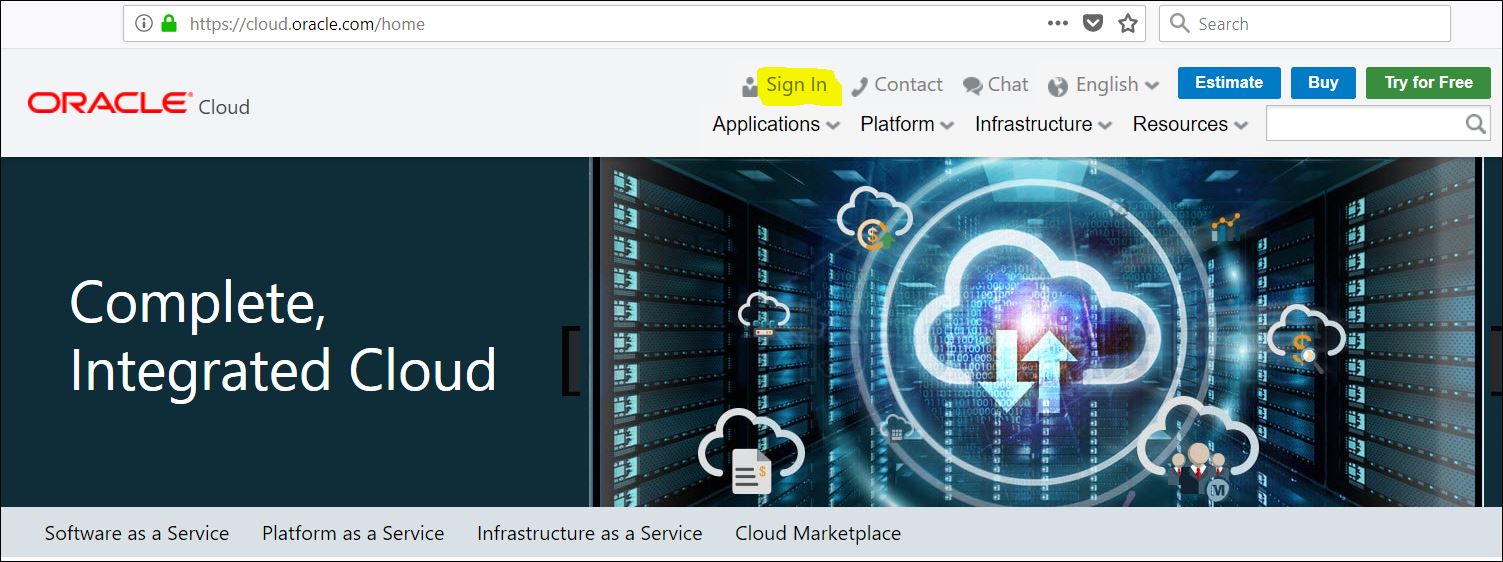
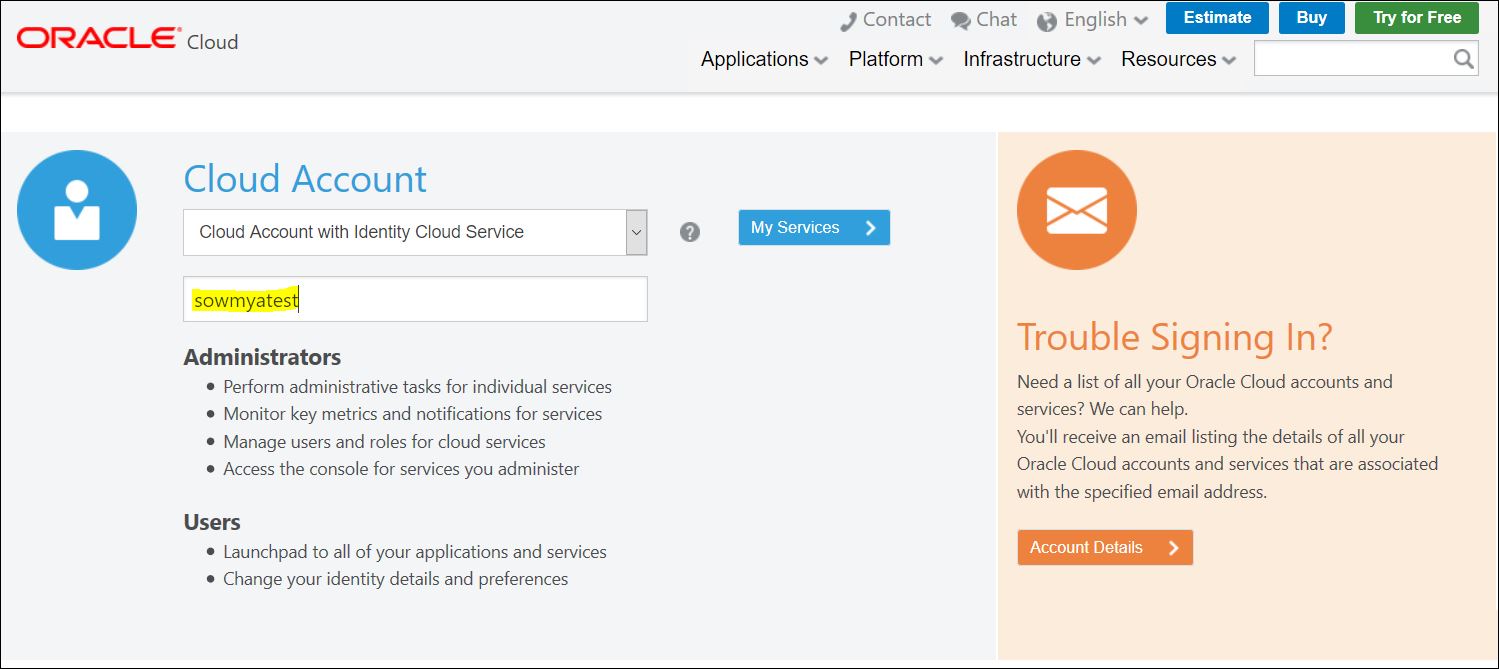
  • Enter the Identity Domain as choose during the registration or as received and click on My Services.
  • Enter your credentials in the login page and click Sign In


  •  We will be taken to our Services Dashboard as shown below.


  • Click on the symbol on the left top corner of my services dashboard.
  • Select the Drop down next to Services and Click Database


  • Click Create Instance as shown in the image.


  • Give a name to the Database something like DBCS, Software release should be 12c Release 1 as OAC is not certified with 12c release 2. A single instance would suffice

  • Give values as shown in the below screenshot. Password chosen here is Admin123#. These will be sufficient for use with an Oracle Analytics Cloud, for using as a Database for tables etc.. you might have to change based on usage. Click Edit next to SSH Public Key. 


  • Select 'Create New Key' if you do not have a public key already and click 'Enter'


  • Click Download to get the key pair, which will be used for SSH access to the DBCS instance.


  • Click Next as shown below


  • Click Create.


  • It takes around 30 minutes for the instance to provision and once it is done you will see this screen.

Introduction to Oracle Analytics Cloud Series and Pre-requisites

It has been a while since I wrote a post, I have been working on Oracle cloud platform in the areas of Business Analytics and Big Data. As a starting point, I want to write a series of posts around provisioning and usage of Oracle PaaS services targetting areas around Business Analytics.

Oracle Database Cloud Service: This is the first and most popular Oracle Cloud service for GA. As leaders in the Database engine for over 4 decades the cloud service is also efficient like the on-prem. We would require an Oracle Database Cloud Service as a pre-requisite to the Oracle Analytics Cloud service for the purpose of storing metadata, commonly know as RCU schemas. Learn more about DBCS from here

Oracle Storage Cloud ServiceThis is one of the most common cloud services which you might be already aware of. Storage cloud service is meant for object storage. Everything in the cloud would need storage for the purpose of backup, logs etc. Oracle Analytics Cloud would also require storage of the same purpose of Logs & backups. Learn more about Storage Cloud from here

Oracle Analytics Cloud Service: Analytics cloud service is a combination of Oracle Business Intelligence Cloud Service, Oracle Data Visualization Cloud Service, and Oracle Essbase Cloud Service. So an Oracle Analytics Cloud service would essentially give all these packaged together under one license. Learn more on Analytics Cloud from here

In order to provision an Oracle Analytics Cloud service, below are the pre-requisites.

  1. Cloud Account - Identity Domain, Username/Email, Password 
  2. Oracle Database Cloud Service - Provisioned and Ready to use
  3. Oracle Storage Cloud Service - Either a Container Created or Storage Admin Credentials for creating while provisioning.
In case you do not have a cloud account, you can try the Cloud for free with a promotional account having 400SGD credit for 30 days. Register for a cloud account at https://cloud.oracle.com.